
Completion requirements
How to connect to a remote lab
At each exercise in the course there will be a link to the Cybersea remote hub and the number/name/code/IP of the Cybersea remote lab in which you can take the exercise.
Example:
To take the exercise you should go through the Cybersea remote hub to the Cybersea remote lab Lab1/HMU with the code 1234 and IP 147.95.32.102:1234.
Cybersea remote hub
Once you are at Cybersea remote hub, you should find the right Cybersea remote lab and press its "More..." button.
Then you will se the full description of the exercise covering overview, objectives, instructions, resources and outcome.
You should proceed to the booking system by pressing "Book" button.
Cybersea booking system
Access to the Cybersea remote lab where you can take the exercise should be booked. Once you are at the Cybersea booking system please carefully read the lab booking guidelines and fill out the form.
In the form you will fill the required fields using your existing username and password and one of the lab codes mentioned below:
- Lab1 HMU: "1313",
- Lab2 IDEC: "3063",
- Lab3 UPC: "9079",
- Lab4 SZCZECIN: "4842",
- Lab5 NAVALA: "7316",
- Lab6 Samk: "8773",
- Lab7 Spinaker: "5199",
- Lab8 BERLIN: "1176",
- Lab9 C4FF: "6045"
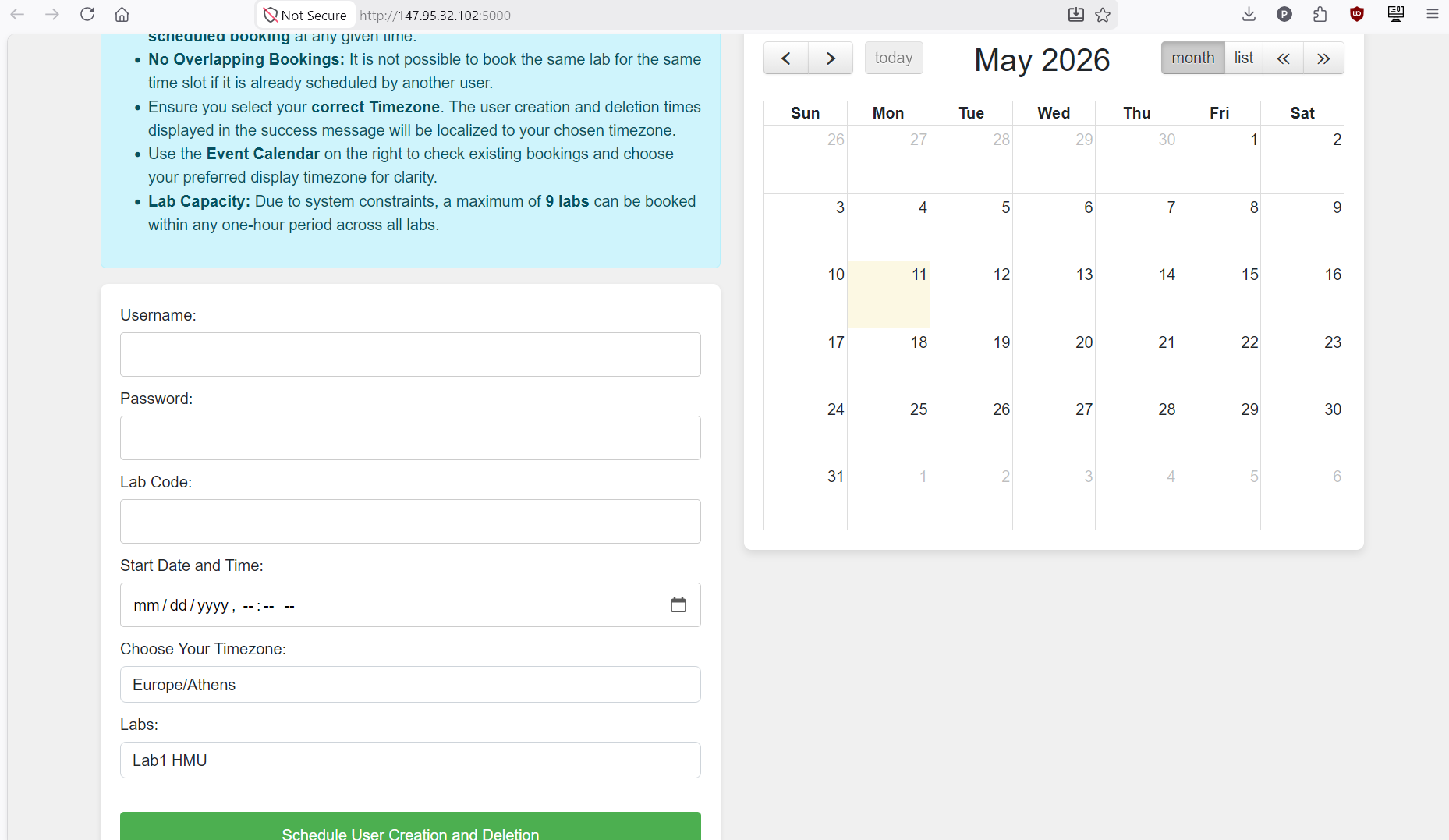
After a successful booking you will get the booking confirmation on the screen.
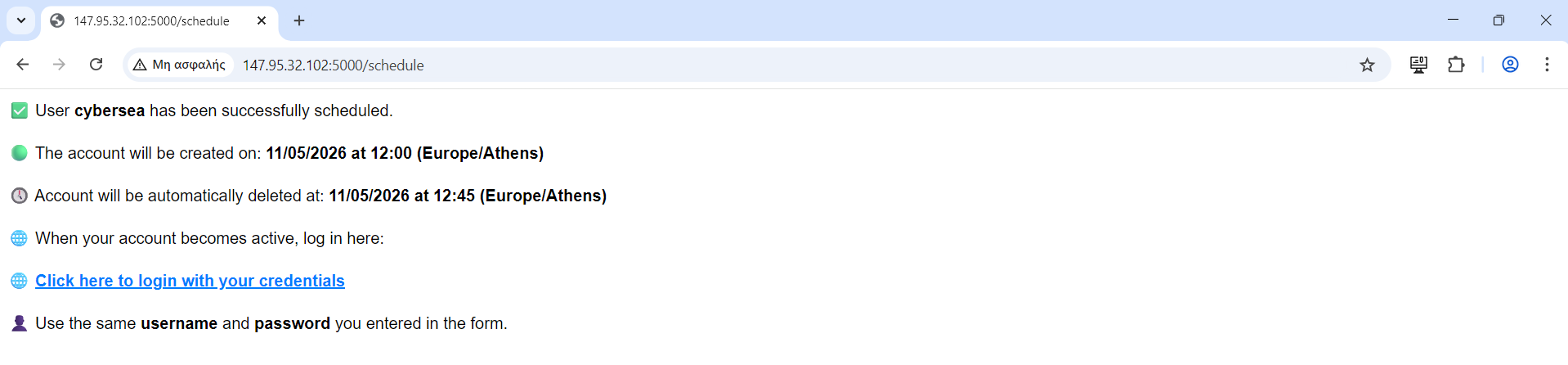
Your booking is also visible in the calendar at Cybersea booking system.
Cybersea remote lab
Access to the Cybersea remote lab is permitted only during your booked time slot. Once the allotted time expires, you will be automatically logged out of the Cybersea remote lab. To re-enter, you must place a new booking for your next slot.
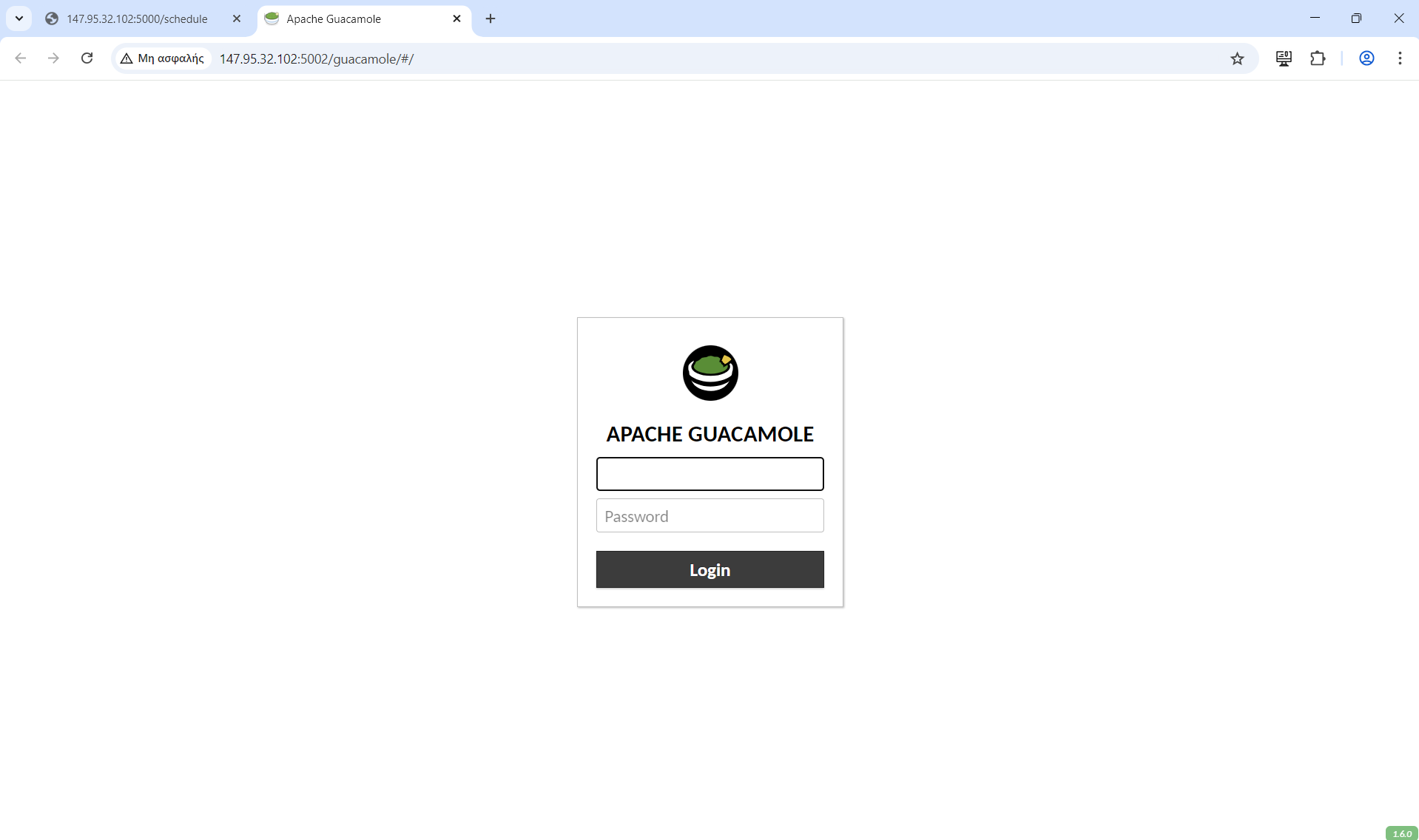
To access the lab you can click to the link provided after your registration and you will be directed to the following page using the username and password
Then you will access the remote lab and type your password when asked
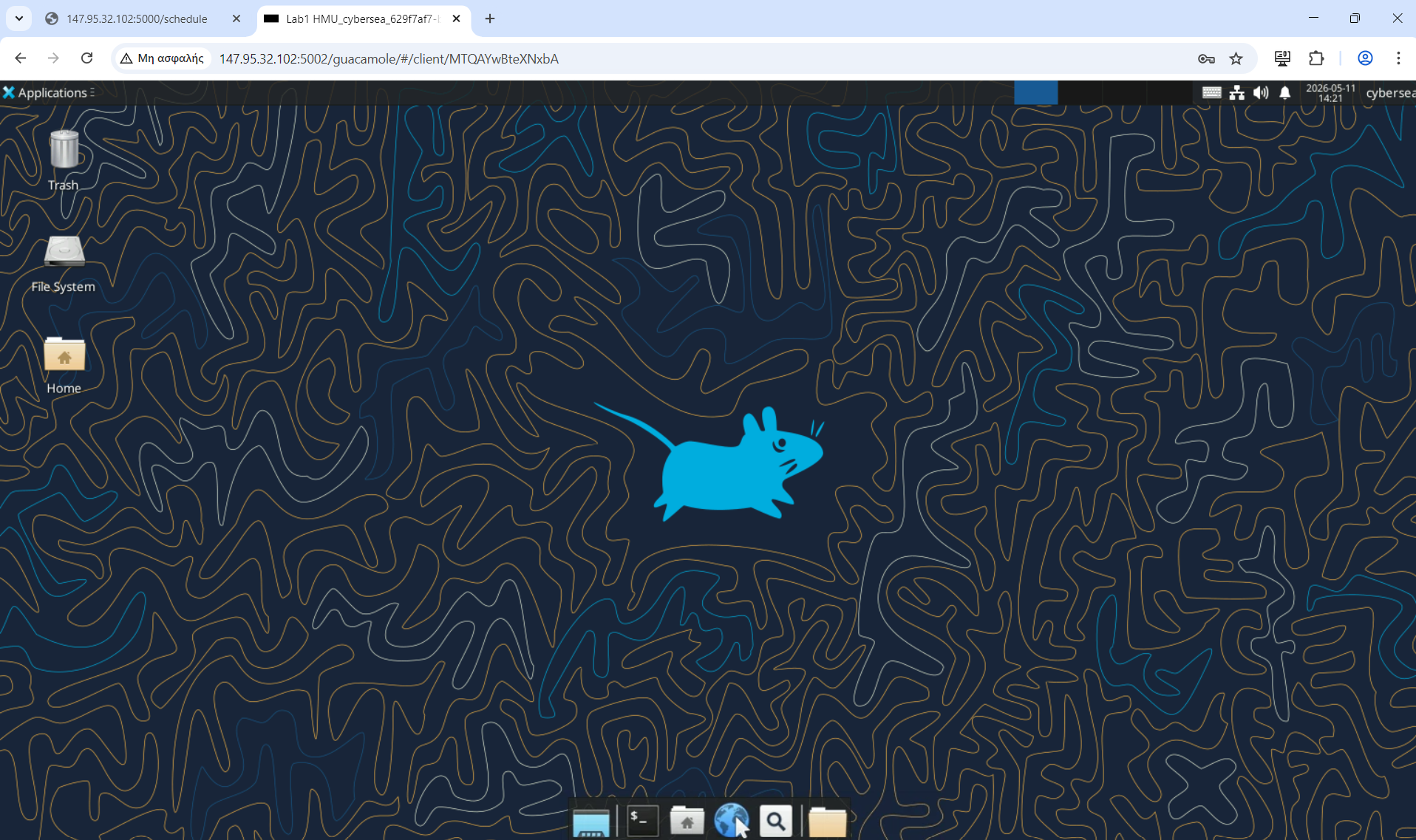
From there you click the Internet Icon in the bottom of the screen and the browser will open where you have to type the following address http://147.95.32.102:8000/
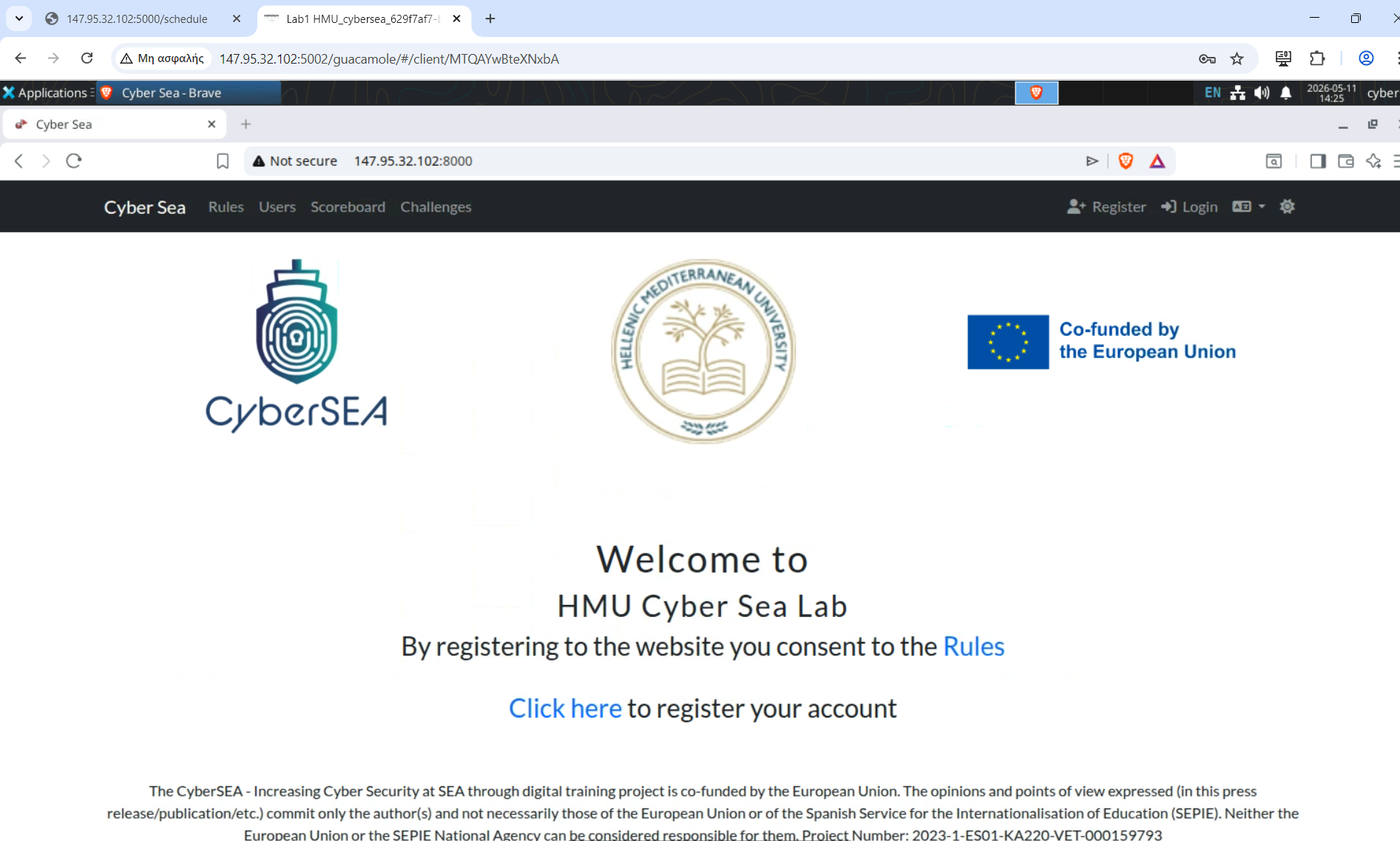
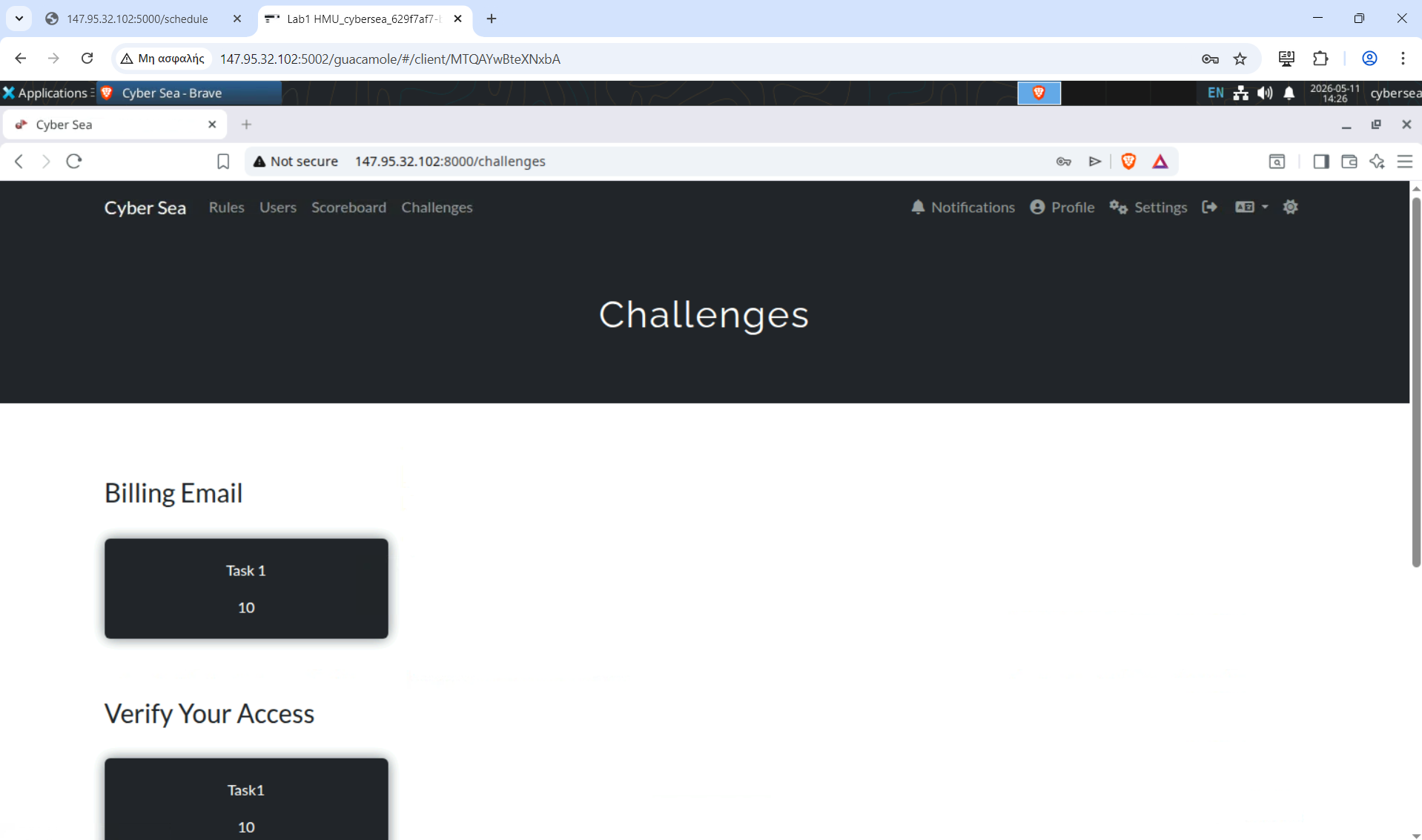
From there you need to register an account using a username (not the same every time), an email and a password and you will be presented with the challenges of the specific lab
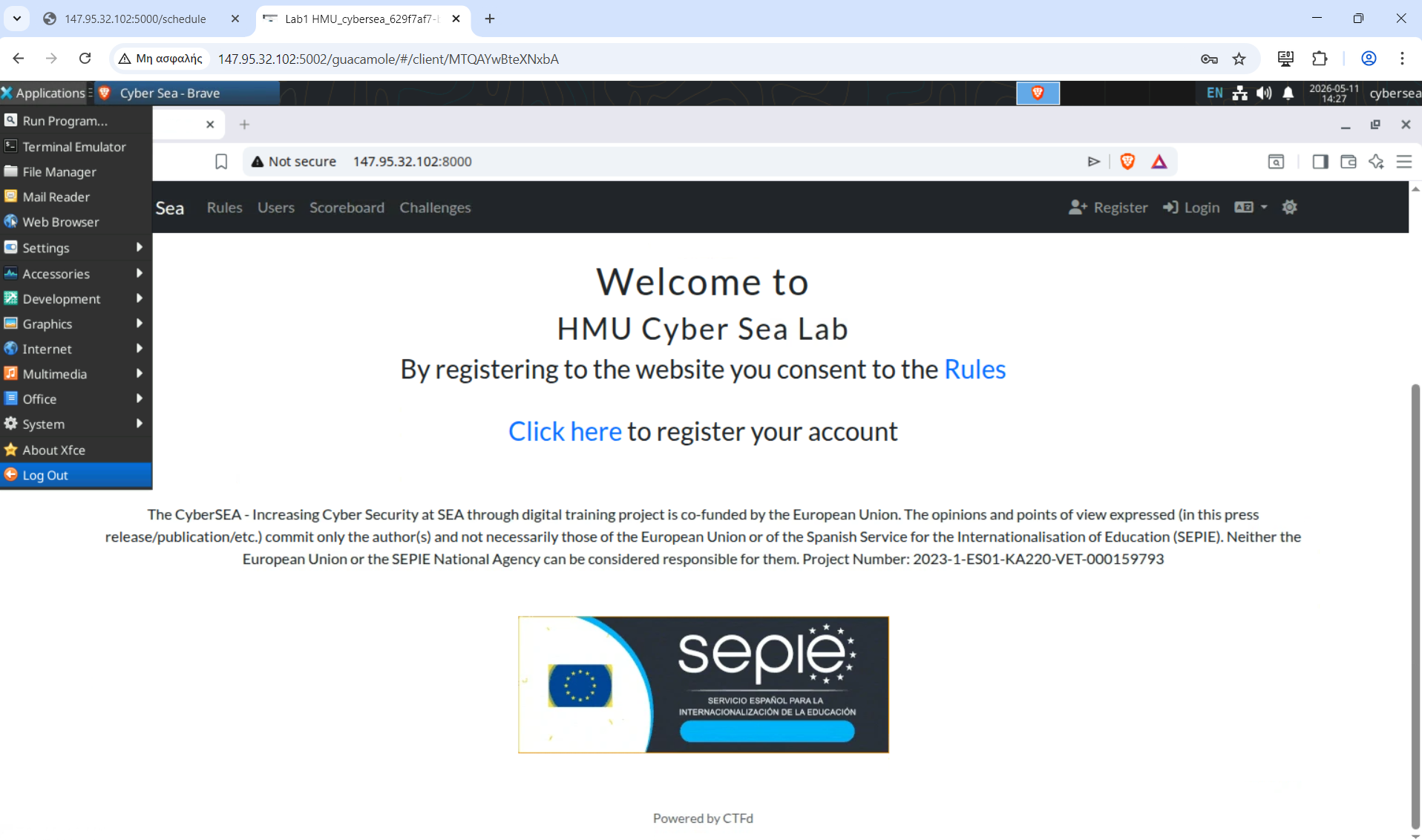
After finishing with your exercises you can exit the lab by clicking on the top left corner Applications > Logout
Last modified: Tuesday, 7 July 2026, 7:09 AM